Presets and Settings
You can select presets, adjust view settings and temporarily disable the effect at the top of the plug-in window.

|
1 |
Menu: The menu contains various commands for managing user presets. |
|
2 |
Previous/next preset |
|
3 |
Preset menu: In the menu you can select the presets from different categories. |
|
4 |
Settings: Here, you can disable the tooltips. You can also switch labels for the controls. With Value the set value is always displayed, with Dynamic the value is only displayed when you move the mouse over it and otherwise its function. Show tutorial opens a tutorial that explains the function of the effects. |
|
5 |
Bypass: Use this button to temporarily disable the effect. |
User Presets
To save your own presets, select Save as... from the menu. You can set a category and a preset name. Once you have created your own presets, the Preset menu contains a second section entitled USER, where you can find your own presets, organized by category.
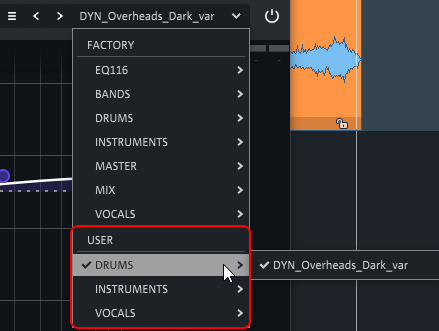
Changed Factory or User presets get an asterisk in front of the name.

With Revert changes you restore the settings of the preset, with Save you save the changes in the preset. Changes to Factory Presets cannot be saved, but you can save them as a User Preset using Save as....
You can rename a user preset with Rename... and delete it with Delete.
You can also organize your user presets by using Open user presets folder to open the folder with the user presets. The categories in the Preset menu correspond to subfolders in this folder, the preset names to the file names of the presets. If you have moved or renamed files there, run Reload user presets so that these changes are applied to the preset menu.
Last modified on June 09, 2026
Was this page helpful?
What did you particularly like about this page?
What did you dislike about this page?
Thank you for your feedback.